Timebox 4.2 - A Better Timeline

Timebox 4.2 is now available. We’re excited about it because among a few small fixes it also includes larger images on the Timebox timeline. On the iPhone in particular, it was hard to see any details in the photos. There’re now about twice the size and much easier to see.

We also heard from some of you that you wanted to make videos from multiple stories. You got it!

  1. Just tap select in the upper right corner.
  2. Select your stories.
  3. Tap the share button in the lower right corner.
  4. Tap Make Video Story
  5. Enjoy and share with your friends, family and followers, if you want.

Here’s the full list of what is new in the 4.2 update:

  • Increased size of timeline images.
  • Changed print button on timeline to “Select”, moved up next to search button
  • Added support for making a video from multiple stories from timeline via new Select / share button.
  • Added video making support for text blocks, including animated scrolling for very large text blocks.
  • Added captions and locations to zoomed photo mode.
  • Improved database performance and fixed some bugs.

If you like to take photos of your travels, adventures, events, family and friends, write about them and occasionally share and print the stories, then Timebox is for you. Take photos and videos as usual. Add your writing. Timebox does the organizing and sharing. You keep the memories. Simple.

Please let us know what you think or if you have any questions or comments. We love to hear from you!
Getting Timebox

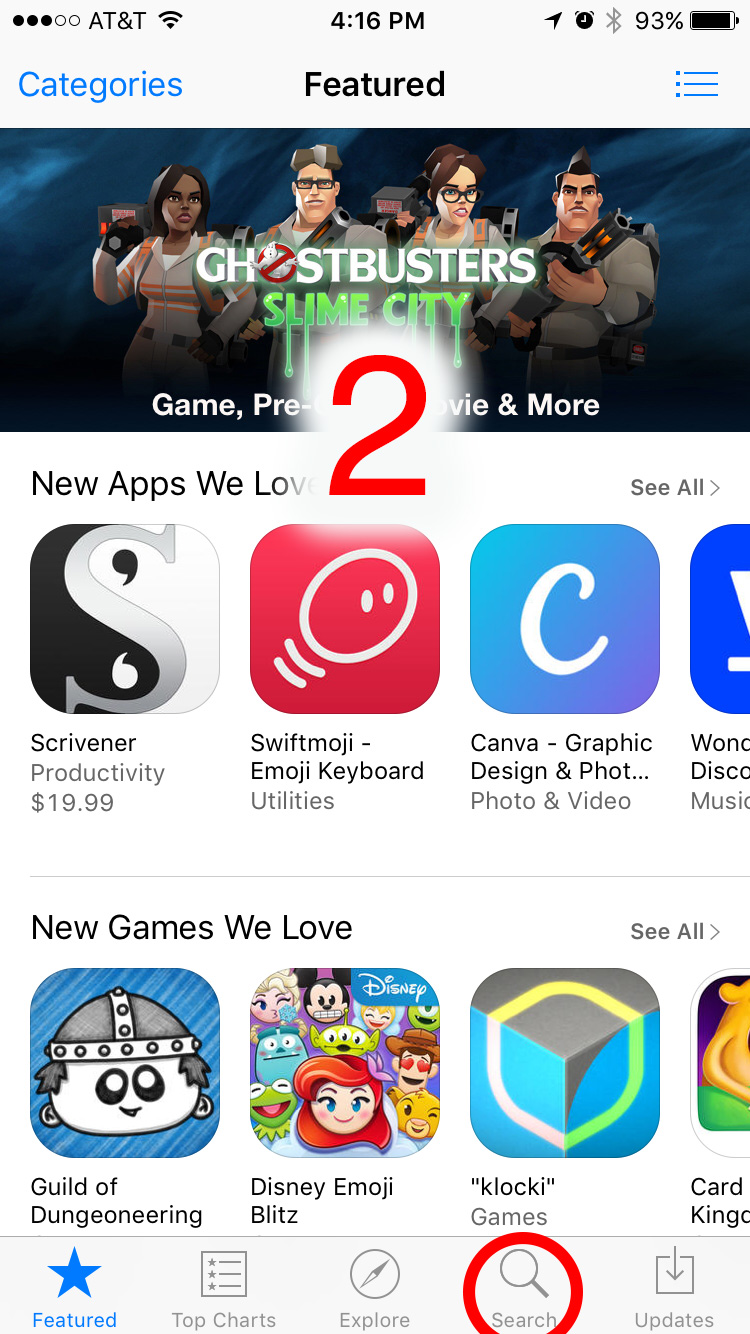
Over the last few days a number of people have asked us how to get Timebox. When we say go to the App Store and download it, they sometimes look frustrated and a bit annoyed. We get it. It’s not actually as easy as it sounds. Here is a step by step guide to get Timebox. We hope it helps.

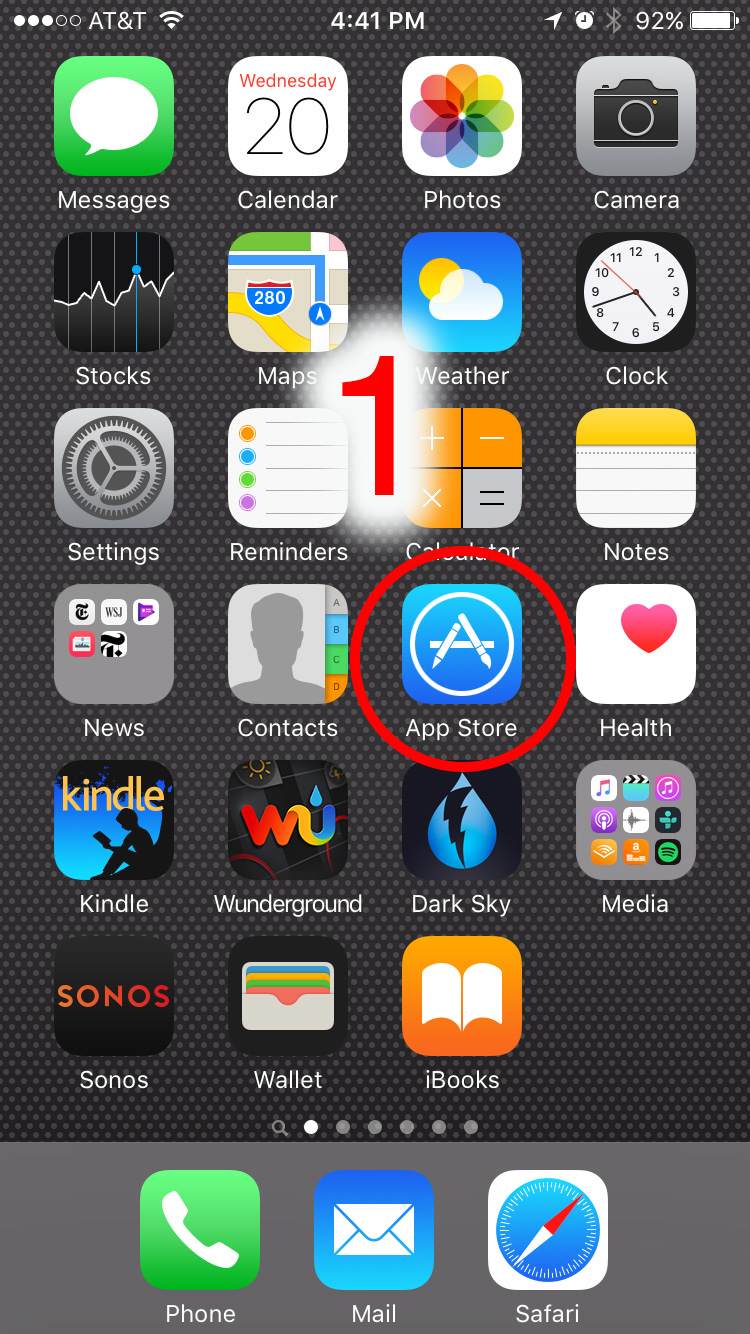
  1. On your iPhone or iPad, tap the App Store icon.
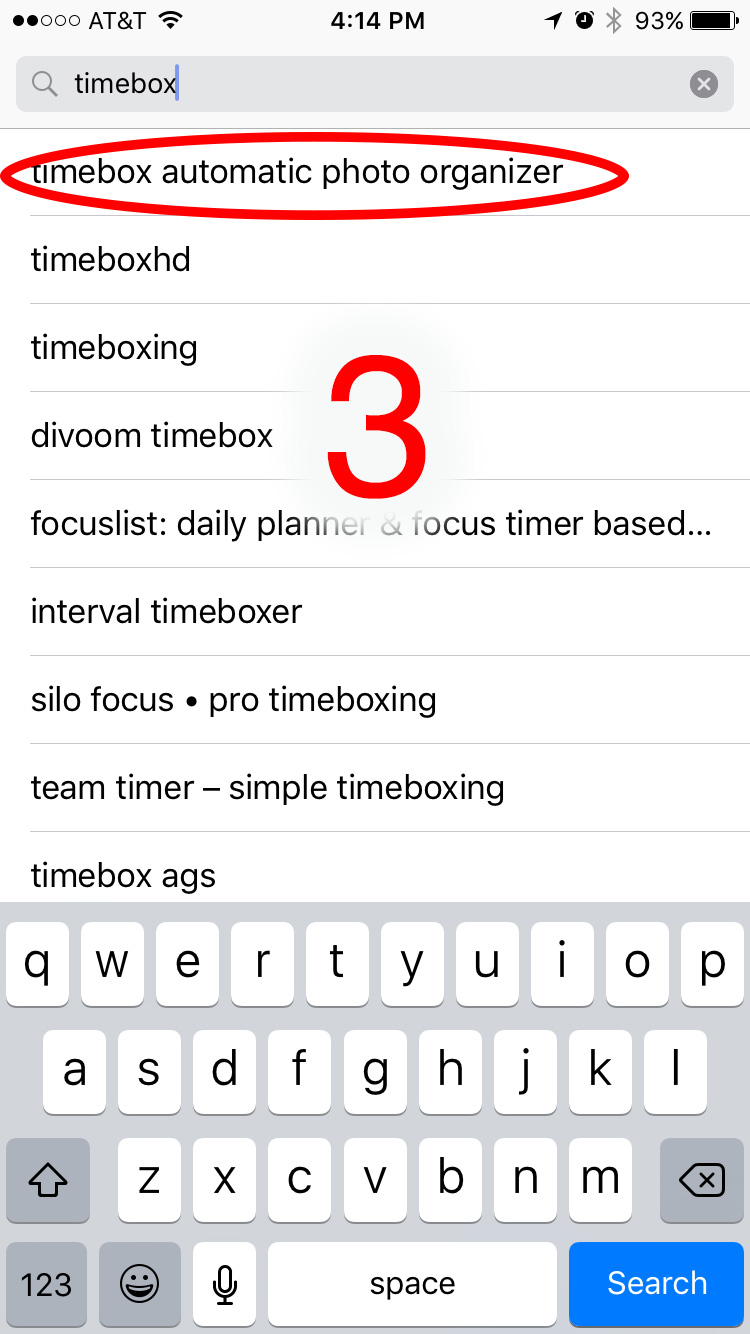
  2. Tap Search and then type Timebox.
  3. Tap Timebox Automatic Photo Organizer in the search results.
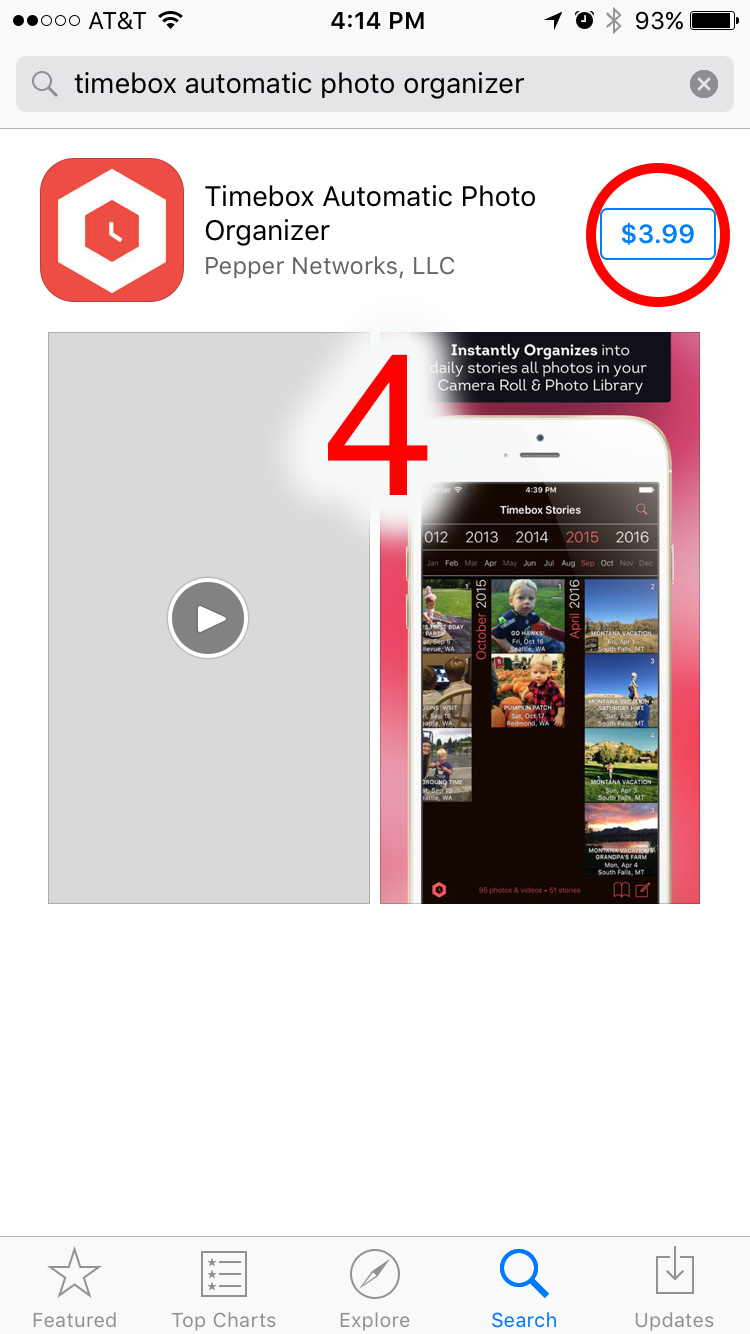
  4. On the Timebox page tap $3.99 then tap Buy to download and install it. At that point, you’ll also most likely be asked to type in your App Store password or use Touch ID.
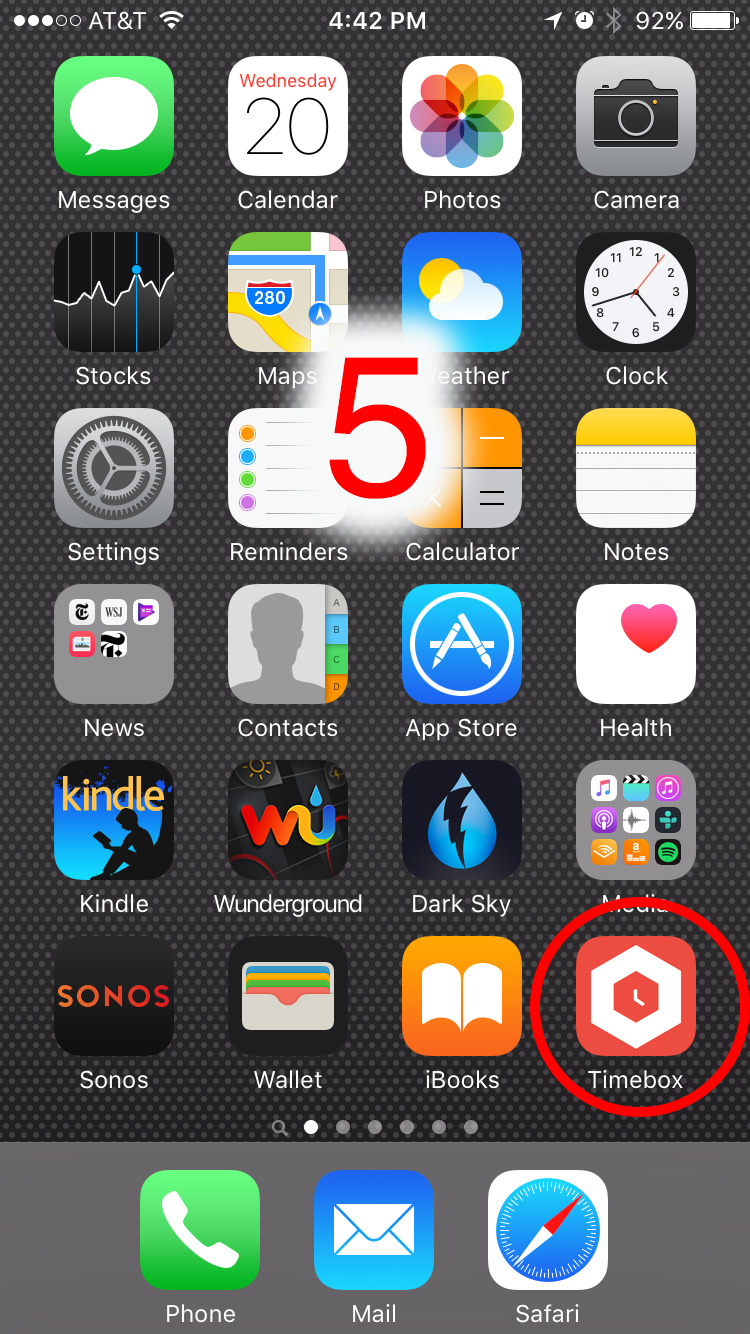
  5. Once Timebox as been installed on your iPad or iPhone, just tap the Timebox icon to launch it.

Since Timebox is a photo organizer app it will need permission to access your photos and access to your calendar to create your daily photo stories. If you don’t give Timebox permission, it won’t work.

Here are the permission request messages that are displayed by iOS the first time your launch Timebox:

  • Timebox would like to access your Photos. Don’t Allow / OK
  • Timebox would like to access your Calendar. Don’t Allow / OK

That’s it. You’re done.

By the way, all of the photos, videos and stories in Timebox are stored on your device or in your own iCloud storage. We (Pepper Networks, LLC) do not store any of your data anywhere else, ever.

As always, questions and comment welcome. We love to hear from you.

If you had a moment, we would really appreciate it if you would rate Timebox. Its easy. Just tap the Timebox icon in lower left corner of the Timebox timeline, then tap Rate Timebox. Thanks!

Do you love maps?

Timebox automatically adds maps to your stories.

For as long as I can remember I have always loved maps. When I was growing up we used to plan road trips by first contacting AAA®.

You would call them on the phone and tell them where you were going. They would then send you a custom Triptik® in the mail which was a rectangular paper notebook that detailed every turn of your trip no matter how many miles. You would flip a page when you arrived at the farthest point on the page and keep going. We are still AAA members and they now have an app for that.

We have a small collection of maps and atlases at home and have needed road maps on occasion. For example in a foreign country or city with no connectivity. Flying into Florence, Italy and heading to meet friends at their villa in Tuscany with no connectivity or address (local charm?) was challenging even with a paper map.

When you print your stories as a hardcover book, PDF ebook, or on your own home printer, Timebox adds a map on the last page with a summary of the locations of all of your stories.

Paper maps used to be essential but with today’s apps we can get directions to anywhere by typing in an address, place name or any number of things. Getting around these days is much easier (getting lost can have it’s advantages) but being able to see where you’ve been is part of the story.

Timebox will automatically create maps in your stories from any of the GPS locations that are in your photos and videos included in the story. Tiimebox will also include pins, adding additional pins for each new photo or video location. If you had a busy day, you can see it all on the map.

Two more things: the maps are zoomable and if you print a book or PDF with photos from a trip with multiple stops the last page of the book will show a map with all your stops and pins.

We added maps to Timebox because they help us remember where we’ve been and tell better vacation stories.

We eventually made it to our friend's villa in Tuscany and you can see in this post the Timebox maps from our stories. The old paper map we had at that time turned out to not be much help but the directions about the dirt road and a "black mailbox" finally helped us find our way.

As always, please let us know what you think. We love to hear from you!