Pepper Movie Maker 3D

Everyone can make realistic animated 3D movies.
  • Home
  • What's New
  • Blog
  • FAQ
  • About
  • Contact
  • Home
  • What's New
  • Blog
  • FAQ
  • About
  • Contact

Movie Maker 3D Blog

Movie Maker 3D app blog.

Martin Martin by Brian Doyle (photo by Oregon Encyclopedia)

Martin Martin by Brian Doyle (photo by Oregon Encyclopedia)

About Miss Moss from “Martin Marten” by Brian Doyle

Mary Ellen Heinen August 18, 2020

According to the Oregon Encyclopedia, a project of the Oregon Historical Society "Writer Brian Doyle explored the spirit of Oregon’s small towns and the wonders of the world. Describing himself as “a story catcher,” he wrote about spirituality, family, nature, place, wine, and the human heart with a distinctive playful style and zest.”

The excerpt below is from his book Martin Marten (2010) and describes the stories belonging to Miss Moss one of the book’s characters. We love the way he talks about stories, how they change and how they get told.

“A great deal of who she really is are stories we do not know, stories she may or may not share, stories perhaps even she does not know the meaning and shape of quite yet. People are stories, aren’t they? And their stories keep changing and opening and closing and braiding and weaving and stitching and slamming to a halt and finding new doors and windows through which to tell themselves, isn’t that so? Isn’t that what happens to you all the time? It used to be when you were little that other people told you stories about yourself and where you came from, but then you began to tell your own story, and you find that your story keeps changing in thrilling and painful ways, and it’s never in one place. Maybe each of us is a sort of village, with lots of different beings living together under one head of hair, around the river of your pulse, the crossroads of who you were and who you wish to be.”

Chapter 38, Location 2018 - Kindle version.

Martin Marten, Brain Doyle, St. Martin’s Press, 2015

We’re working our way through his writings and have enjoyed every one so far.

About Brian Doyle

Comment
CutoutsBlogPost.jpg

Fun With Cutouts

Len Kawell July 15, 2020

Timebox now includes a new 3D model called a Cutout. A Cutout model is a customizable photo frame with special features so you can add realistic photos of people to your Timebox scenes.

A Cutout model is a customizable photo frame with special features so you can add realistic photos of people to your Timebox scenes.

Cutout models remove or “cutout” the background of iPhone or iPad portrait mode photos. They also preserve the transparent background in PNG photos so the person in the photo will appear as if they’re standing (or floating) in the scene without the background of the original photo.

A Cutout model:

  • Looks like a vertically-oriented, smoked-gray glass.

  • Is usually added to the ground or floor in a scene.

  • Takes advantage of iPhone and iPad portrait mode photos and the new Select Subject feature in Adobe Photoshop 2020 for iPhone, iPad and Mac.

  • A Cutout is also a customizable Photo Player to show and play any Timebox photo stories.

To add a portrait mode photo to a Cutout:

  1. Use the Camera app on your iPhone or iPad to take a photo in Portrait mode. Currently Portrait mode is only supported on recent devices listed here along with helpful how tos and lighting tips: https://support.apple.com/en-us/HT208118.

  2. In a Timebox scene, tap the ground or floor where you want to place the cutout, then tap the + button, then Signs & Screens, then tap Cutout.

  3. Tap the new Cutout model, then tap the Photos button, then Photo Library, then Albums, then Portrait from Media Types to choose one or more portrait photos.

  4. You may want to tap the Photos button again to adjust how the photo is positioned or cropped in the Cutout by tapping Player Settings, then No Cropping.

To make any photo useful for a Cutout using Adobe Photoshop for iPad:

  1. Launch the PhotoShop for iPad app and open or import a photo of a person.

  2. Tap and hold the select toolbar button until the popup with Select Subject appears, then tap Select Subject.

  3. Once the person is selected, tap the Mask button on the toolbar that appears on the bottom of the screen.

  4. Crop the result as desired, usually making a vertical photo works best with the Cutout model.

  5. Tap the Share button and choose Publish and export, then choose PNG format (to preserve the transparent background).

  6. Then choose where you’d like to save the PNG photo.

  7. Then follow the steps above, starting with step #2 to add the photo to your Cutout model.

Give cutouts a try! We’d love to hear what you think. Thanks!

(updated 11/11/2020)

Comment

Augmented Reality (AR) for Everybody

Len Kawell June 9, 2020

If you haven’t tried Augmented Reality (AR) yet, Timebox provides an amazing, fun way to see your 3D scenes and animated models in the real world.

It’s simple to place your Timebox scenes on your desk, in your yard, on the floor or anywhere. Tap the AR button and your scenes instantly become “hyper photorealistic" using real lighting, reflections, floors, grounds and backgrounds.

Play with your 3D scenes in AR using all the normal iOS gestures. Share your hyper photorealistic AR scenes, even as videos, via all the usual methods.

Simply tap the AR button on the bottom toolbar to:

ARKit-Control-Label-Icon.png
  • Explore a virtual campsite scene with a campfire, flying eagles and glowing lanterns placed on your real desk.

  • Walk around a virtual birthday scene with floating balloons placed on the floor of your real room.

  • Place a virtual backyard scene with animated dogs, swimming pool, smoking grill and toys in your own real yard.

  • Place a virtual concert stage scene playing your favorite band videos including picnic tables and seats on the real grass in your local park.

  • Add a virtual castle scene with flying dragons and flags to your favorite real woodland.

Tap the AR button to get started:

  • The first time you tap the AR button, iOS will ask you to give your permission for Timebox to use your camera, which is required, since the camera is how iOS shows you the “reality” that is “augmented” by your 3D scene.

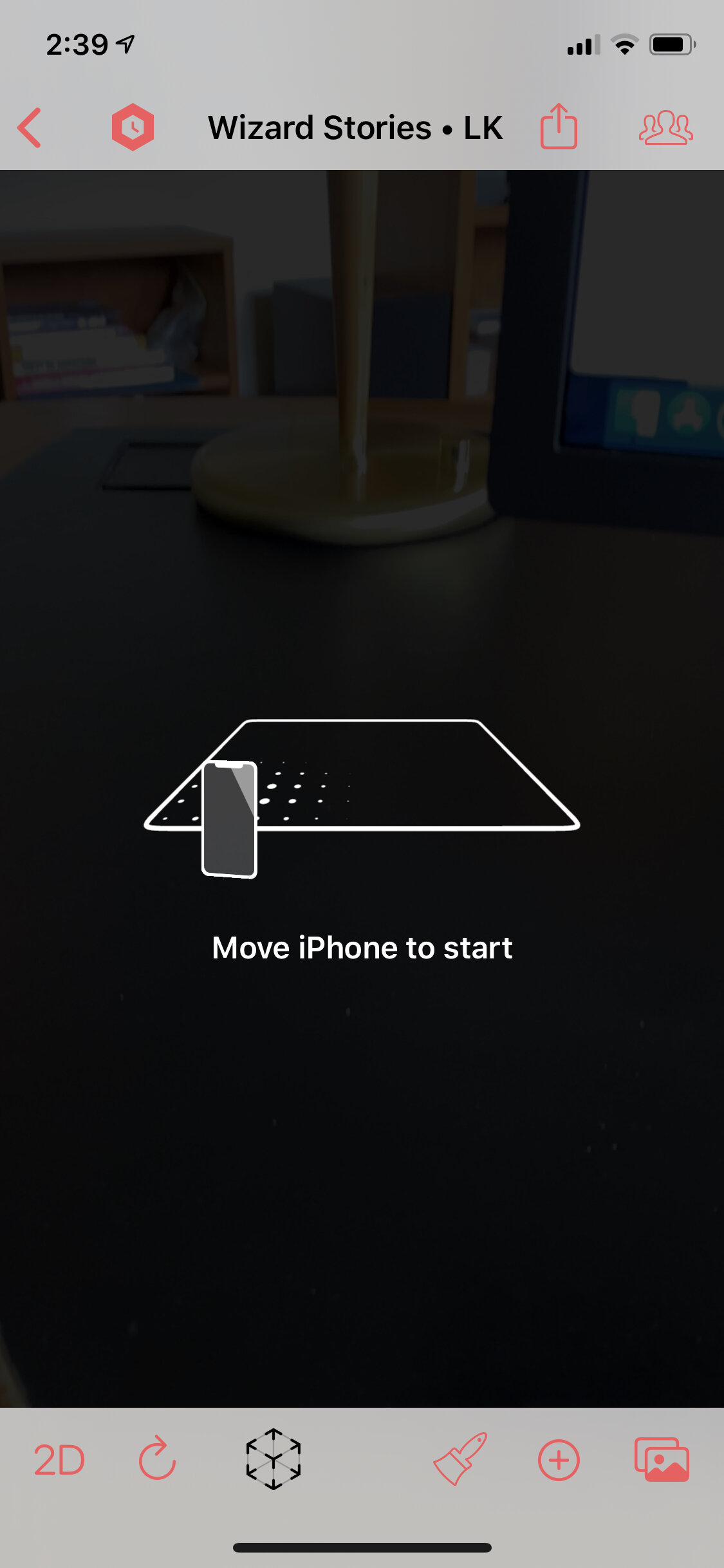
  • You will then see on-screen directions and graphics that tell you to point your iPhone or iPad camera at a flat surface, like a tabletop, floor or ground.

(1) Tap the AR button

(1) Tap the AR button

(2) Point your device at a surface like a desk

(2) Point your device at a surface like a desk

(3) Your 3D scene will appear on the surface

(3) Your 3D scene will appear on the surface

  • Once iOS has found a flat surface, Timebox will add your 3D scene to the surface. You can then:

    • Move around, pointing your camera at different parts of the scene.

    • Reposition the scene on the surface by using your finger on the screen to drag it around on the surface.

    • Resize or rotate the scene by using two fingers to pinch zoom or rotate the scene.

    • Tap on models to start animations.

    • Tap on doors to enter or leave rooms.

    • Tap on models with Story Players to start, pause or zoom the stories.

    • Customize scenes and models in AR!

  • Return to normal 3D from AR, by tapping the AR button again on bottom toolbar.

Give it a try! We’d love to hear what you think - Thanks!


Comment
  • Movie Maker 3D Blog
  • Older
  • Newer

MOvie Maker 3D Blog

Mary Ellen and Len, the founders of Pepper Networks and the creators of Movie Maker 3D, periodically write about the Movie Maker 3D app and related topics.

Movie Maker 3D Blog RSS
  • October 2026 (1)
  • June 2026 (1)
  • February 2026 (1)
  • January 2026 (1)
  • December 2025 (2)
  • July 2025 (1)
  • June 2025 (1)
  • February 2025 (1)
  • January 2025 (1)
  • November 2024 (1)
  • October 2024 (1)
  • September 2024 (1)
  • June 2024 (1)
  • May 2024 (1)
  • April 2024 (1)
  • January 2024 (1)
  • December 2023 (1)
  • November 2023 (1)
  • September 2023 (1)
  • June 2023 (1)
  • April 2023 (1)
  • March 2023 (1)
  • February 2023 (1)
  • January 2023 (1)
  • December 2022 (2)
  • November 2022 (1)
  • October 2022 (1)
  • September 2022 (1)
  • August 2022 (1)
  • June 2022 (1)
  • April 2022 (1)
  • March 2022 (1)
  • January 2022 (1)
  • December 2021 (1)
  • November 2021 (1)
  • October 2021 (1)
  • September 2021 (3)
  • June 2021 (1)
  • May 2021 (2)
  • April 2021 (2)
  • March 2021 (1)
  • February 2021 (1)
  • January 2021 (1)
  • December 2020 (1)
  • November 2020 (1)
  • October 2020 (3)
  • August 2020 (1)
  • July 2020 (1)
  • June 2020 (1)
  • May 2020 (1)
  • April 2020 (2)
  • March 2020 (1)
  • February 2020 (1)
  • December 2019 (2)
  • November 2019 (2)
  • October 2019 (2)
  • September 2019 (1)
  • August 2019 (1)
  • July 2019 (1)
  • June 2019 (1)
  • May 2019 (5)
  • April 2019 (1)
  • March 2019 (1)
  • February 2019 (1)
  • January 2019 (1)
  • December 2018 (2)
  • November 2018 (1)
  • October 2018 (2)
  • August 2018 (2)
  • July 2018 (1)
  • June 2018 (1)
  • May 2018 (1)
  • April 2018 (1)
  • March 2018 (1)
  • February 2018 (1)
  • January 2018 (1)
  • December 2017 (3)
  • November 2017 (2)
  • September 2017 (1)
  • June 2017 (1)
  • May 2017 (1)
  • April 2017 (1)
  • March 2017 (2)
  • February 2017 (1)
  • January 2017 (1)
  • November 2016 (1)
  • October 2016 (1)
  • September 2016 (1)
  • July 2016 (2)
  • June 2016 (2)
  • May 2016 (1)
  • April 2016 (1)
  • January 2016 (2)
  • December 2015 (2)
  • November 2015 (1)
  • August 2015 (1)
  • July 2015 (1)
  • June 2015 (1)
  • May 2015 (2)
  • April 2015 (3)
  • March 2015 (1)
  • February 2015 (2)
  • January 2015 (3)
  • December 2014 (2)
  • November 2014 (2)
  • October 2014 (3)
  • September 2014 (1)
  • August 2014 (1)
  • July 2014 (2)
  • June 2014 (3)
  • May 2014 (2)
  • April 2014 (2)
  • March 2014 (2)
  • February 2014 (1)
  • December 2013 (2)
  • November 2013 (3)
  • October 2013 (2)
  • September 2013 (2)
  • June 2013 (1)
  • April 2013 (1)
  • March 2013 (1)
  • February 2013 (2)
  • January 2013 (2)
  • December 2012 (1)
  • November 2012 (3)
  • October 2012 (2)
  • August 2012 (1)
facebook youtube instagram-unauth url vimeo-unauth
  • Terms of Use
  • Privacy Policy

© 2026 Pepper Networks, LLC. All rights reserved.

Pepper Movie Maker 3D

Everyone can make realistic animated 3D movies.

Movie Maker 3D is an app for iPhones, iPads and Macs that makes it simple for everyone to create realistic, animated movies and videos with multiple scenes, hundreds of programmable 3D models, custom avatars and more.

Pepper Networks, LLC | 710 14th Ave W, Kirkland, WA, US

facebook youtube instagram-unauth url vimeo-unauth